Quick Start
Get up and running with Orga AI in a few minutes. This guide walks you through creating your API key and setting it up locally.
Get your API key: Open the Orga AI Platform
Create your API key
Your API key is your authentication credential for Orga AI. You’ll use it to authenticate requests from your backend server.
Sign in to the Orga platform
Navigate to platform.orga-ai.com and sign in to your account, or create an account if you don’t have one yet.
Navigate to API Keys
Once you’re signed in, open the API Keys section in your dashboard. This is where you’ll create and manage your API keys.
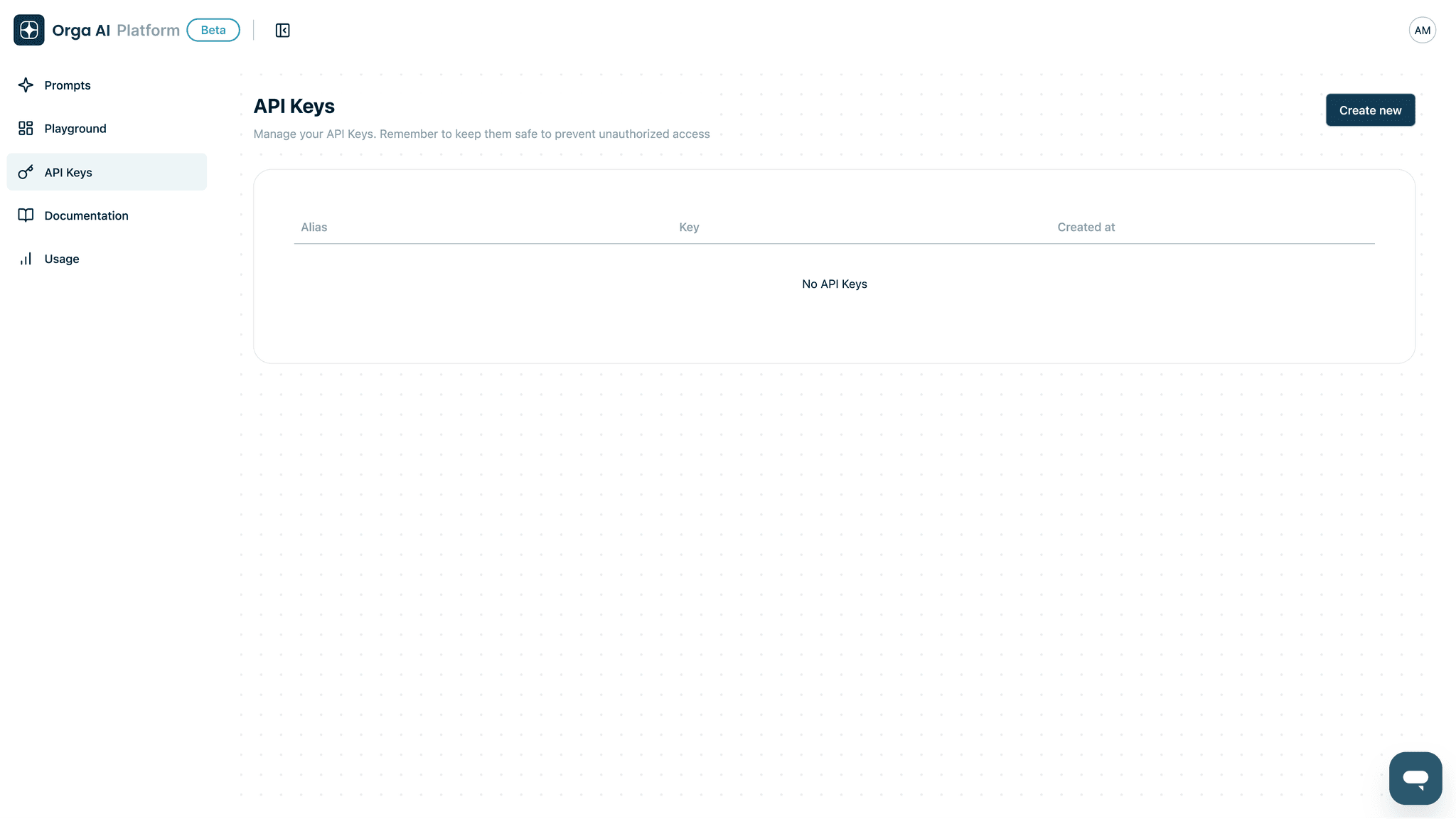
Create a new API key
Click the “Create new” button. You’ll be prompted to give your key a name to help you identify it later (e.g., “Production”, “Development”, “LocalTesting”).
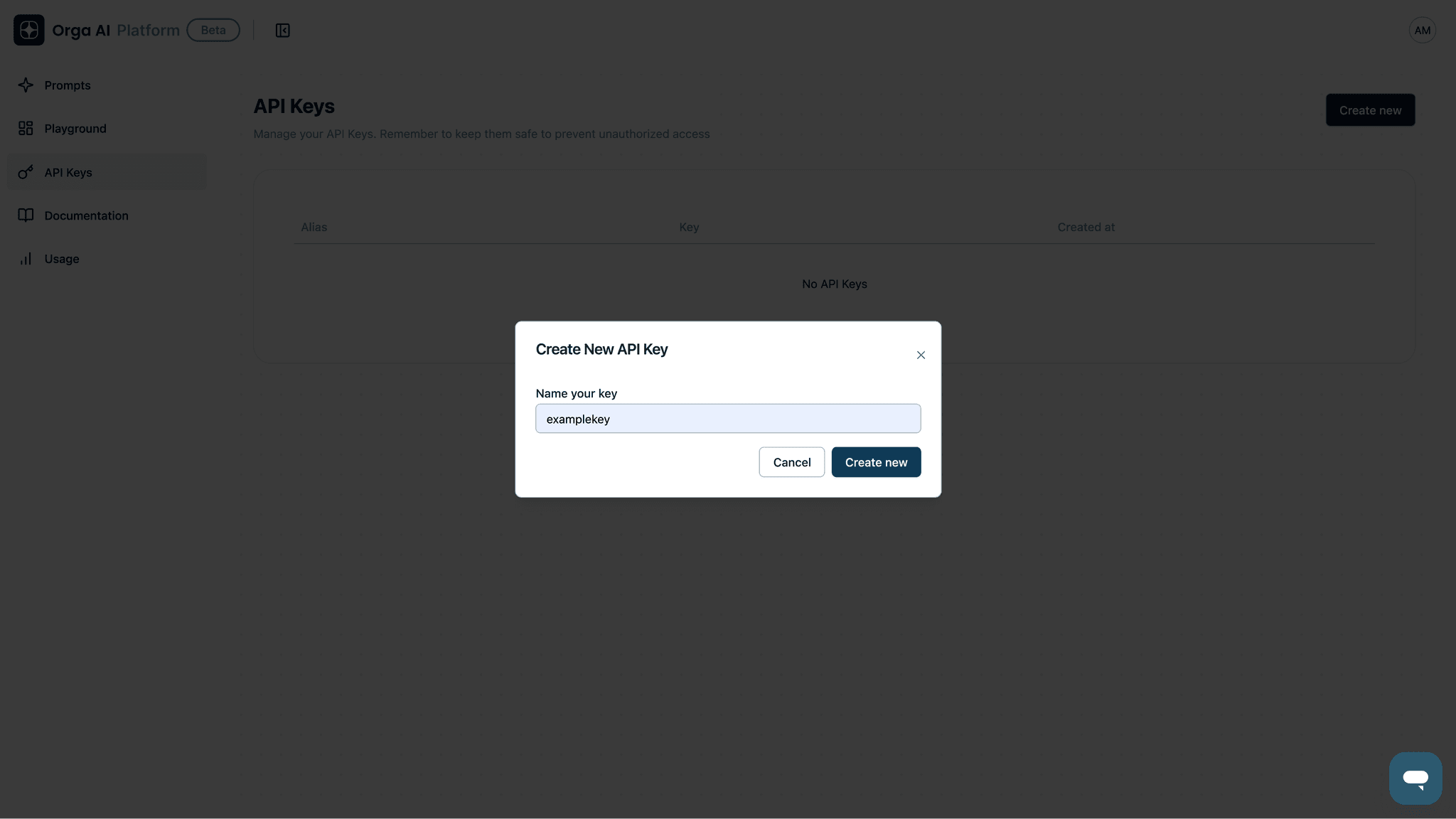
Save your API key
After creating the key, you’ll see it displayed once—this is your only chance to copy it. Make sure to:
- Copy the entire key (it starts with
sk_orga_ai_) - Save it somewhere secure immediately
- Add it to your
.envfile for local development (see below)
Once you close this dialog, you won’t be able to view the key again. If you lose it, you’ll need to create a new one.
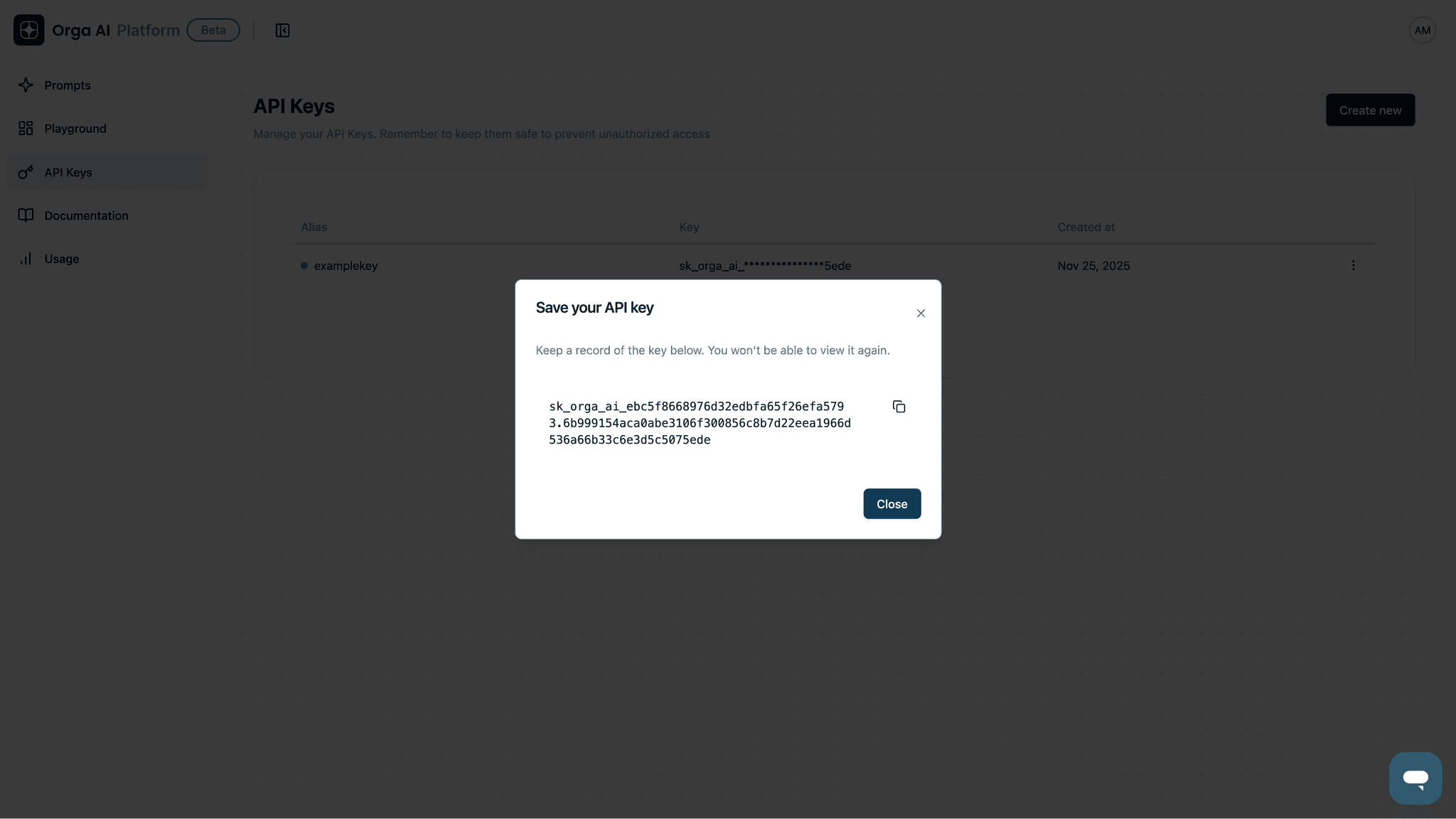
Set up your API key locally
For local development, add your API key to a .env file in your project root:
ORGA_API_KEY=sk_orga_ai_your_actual_key_hereMake sure to add .env to your .gitignore so you never commit your key to version control.
For detailed instructions on managing environment variables across different environments, see the environment variables guide.
Next steps
Now that you have your API key set up, you’re ready to:
- Build a secure backend proxy – Create an endpoint that issues ephemeral tokens to your clients
- Choose a tutorial – Follow a step-by-step guide for React, React Native, or Node.js
- Explore the API reference – See all available endpoints and SDK methods
If you run into any issues, check the troubleshooting guides or reach out for support.